When to use a manual ERD builder
Use ERD Builder when your database is still an idea: you know the business objects and rules, but you have not written tables yet. The canvas lets you discuss entities, attributes, and relationships before choosing a SQL dialect or an implementation.
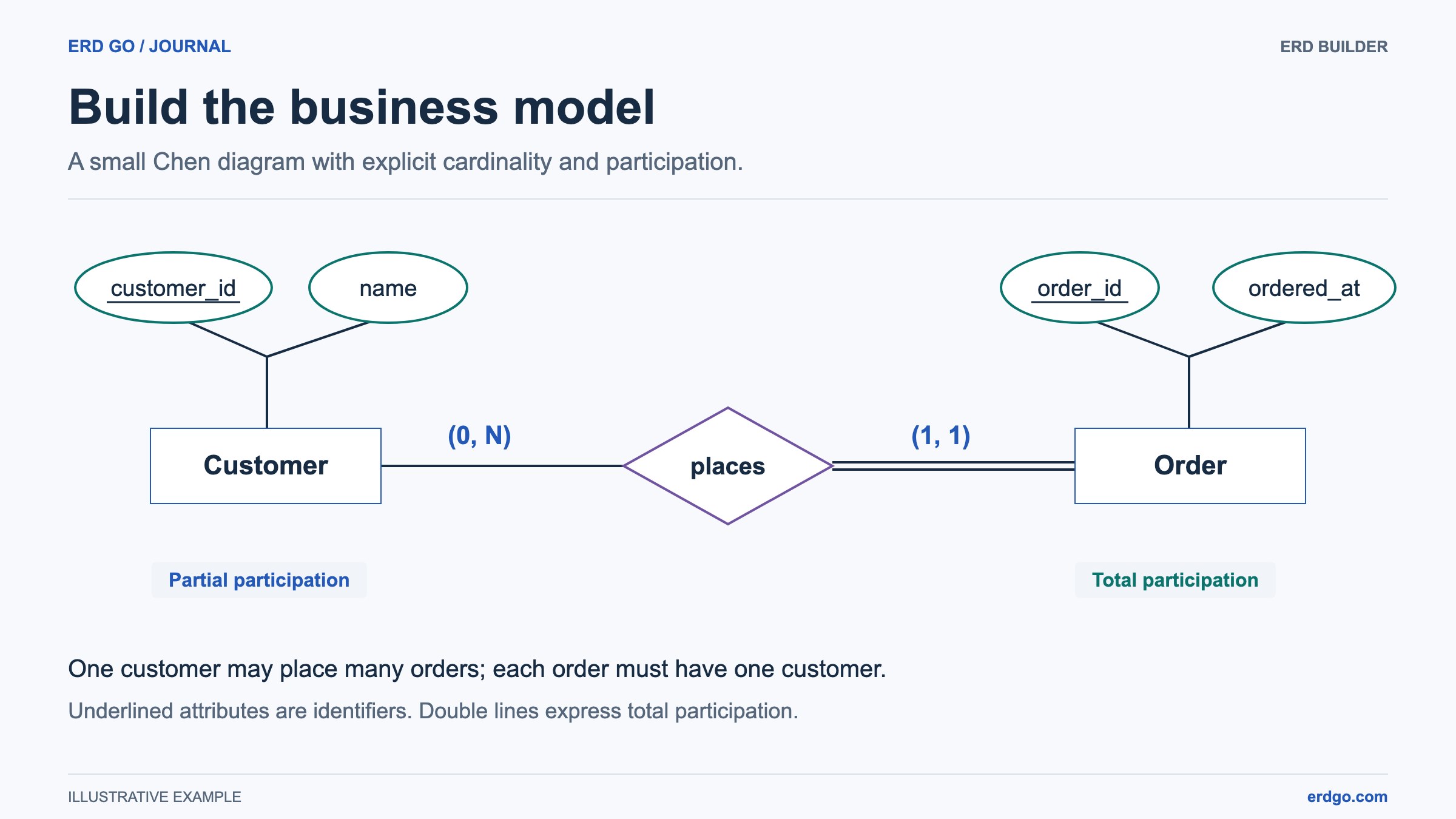
For this walkthrough, model a small shop. A Customer places an Order, and each Order belongs to one Customer. Write these rules down first. They give every shape and connector a purpose and make review easier than starting with an empty collection of boxes.
Create entities and their attributes
Open ERD Builder and start a new file. Click a shape in the library to add it, drag it onto the canvas for precise placement, or focus the palette entry and press Enter or Space. On a phone, tap Shapes to open the library.
Add two Entity shapes and name them Customer and Order. Double-click a shape to edit its label directly, or use the Inspector. Keep entity names singular and use the same vocabulary your team uses in requirements.
Select Customer and use Build from selection to add a Key attribute named customer_id and an Attribute named name. Add order_id and ordered_at to Order. Connected creation attaches new attributes to their owner, so you can expand an entity without drawing every line separately.
Connect the model and state its rules
Add a Relationship named places between Customer and Order. Connect each entity to that diamond by dragging between their handles. A direct line is useful for many shape pairs, but the relationship diamond makes the business action explicit in a Chen diagram.
Select each connector and review the entity named in its cardinality fields. Choose classic cardinality or min-max notation, set the bounds, and decide whether participation is partial or total. For the shop example, record that a customer may have no orders while an order must have a customer. Read the complete diagram aloud to check the intended meaning.
Keep New connector type on Model relationship for model structure. Use Annotation only for an explanatory line, such as a link from a note. Annotation lines do not establish ownership or satisfy model checks; notes create annotation connections automatically.
Check and arrange the diagram
Review Model checks as you build. Selecting an issue reveals its target, including attributes hidden by the Attributes view. The checks help locate incomplete structures; they do not prove that your business rules or future SQL are correct.
Use Arrange diagram to choose a layout, then refine individual positions. You can undo an arrangement. Lock a carefully placed shape when you want later arrangements to preserve its location. Focus zooms to the selected content, while Fit view shows the complete model.
Use consistent colors for meaning, leave space around relationship labels, and keep text readable at a useful zoom. Attributes can be hidden temporarily for an overview. Attribute-count badges are hidden by default and can be enabled in Diagram view settings.
Export, save, and share your ERD
Export PNG, SVG, or PDF when you need an image for a document, presentation, or review. Choose the current view for a focused discussion or the entire diagram for a complete overview. An image export is a presentation of the model, not an editable cloud file.
Sign in to save a Builder file and reload the graph and camera later. Save after your edits before distributing a public read-only link. A public viewer can inspect the saved diagram; sharing does not grant editing access.
When the model is ready, choose Convert ERD to SQL. Select SQLite, PostgreSQL, MySQL, or SQL Server, review the table mapping and column types, and complete any missing cardinality or role choices. Open in SQL to ERD creates a new SQL document with the generated DDL already loaded. Review the conversion notes for rules that need application logic or triggers, and save Builder changes before leaving.
Before your first review
- Every entity has a clear purpose and an identifier appropriate to the model.
- Relationship names describe actions, and each endpoint has an intentional cardinality.
- Notes explain decisions without adding unintended semantic connections.
- The diagram remains readable after fitting the whole canvas and after export.
References and further reading
Try the model on your own canvas
Build, check, and export a Chen or EER diagram in your browser.
Open ERD Builder →