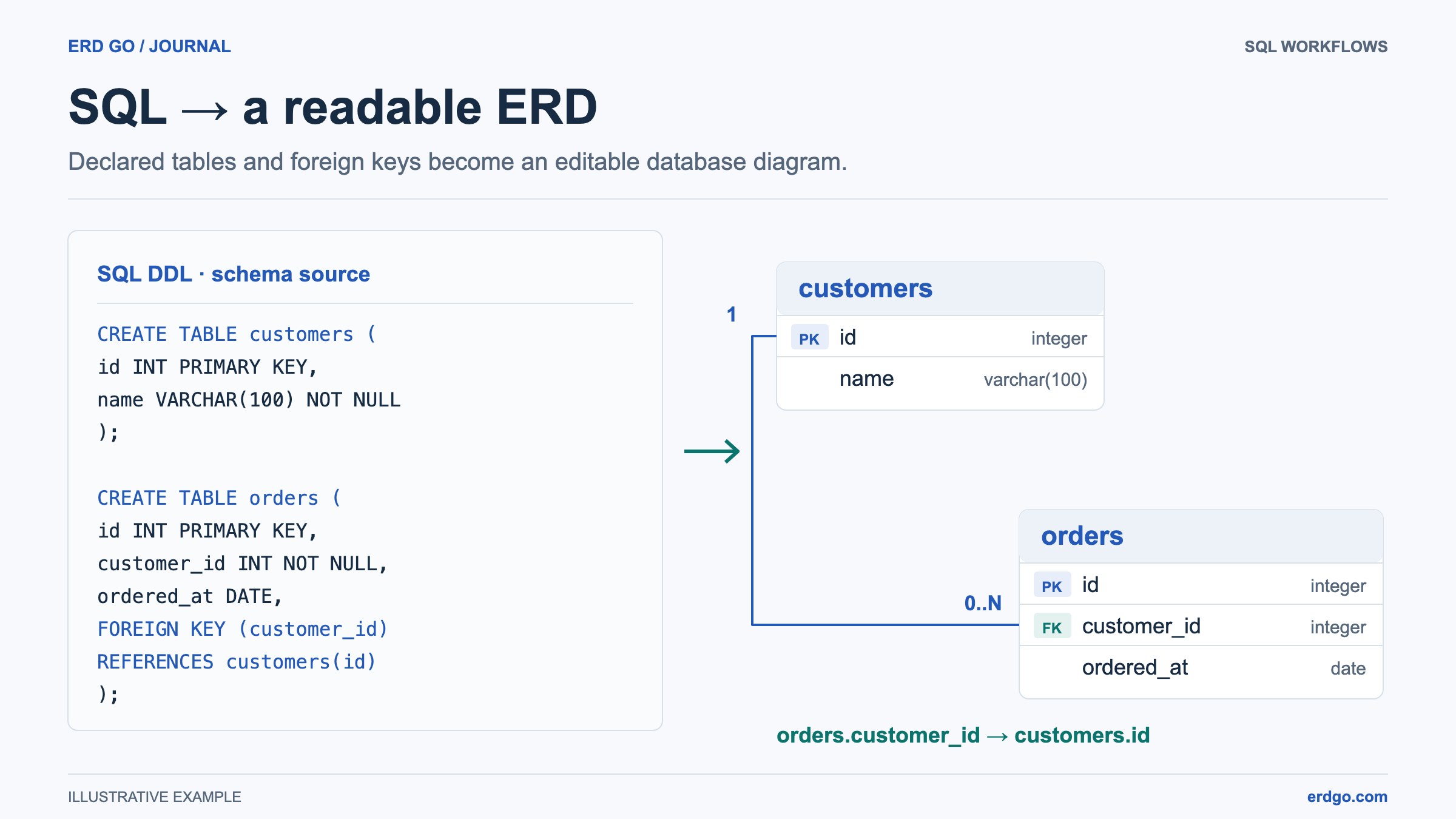
SQL examples use PostgreSQL unless another dialect is named. Short snippets assume their referenced tables already exist. Validate DDL in your target database before applying it.
Why Visualize Your SQL Schema?
A well-structured database might contain dozens—even hundreds—of tables, each linked by foreign keys, constraints, and indexes. Reading raw CREATE TABLE statements only tells part of the story. An Entity-Relationship Diagram (ERD) turns that SQL into a visual map, making it far easier to:
- Spot missing or incorrect foreign-key relationships at a glance.
- Onboard new team members who need to understand the data model quickly.
- Communicate schema decisions in pull-request reviews, architecture docs, and stakeholder meetings.
- Detect normalization issues such as redundant columns or circular references.
- Plan migrations and refactors by seeing the full dependency graph.
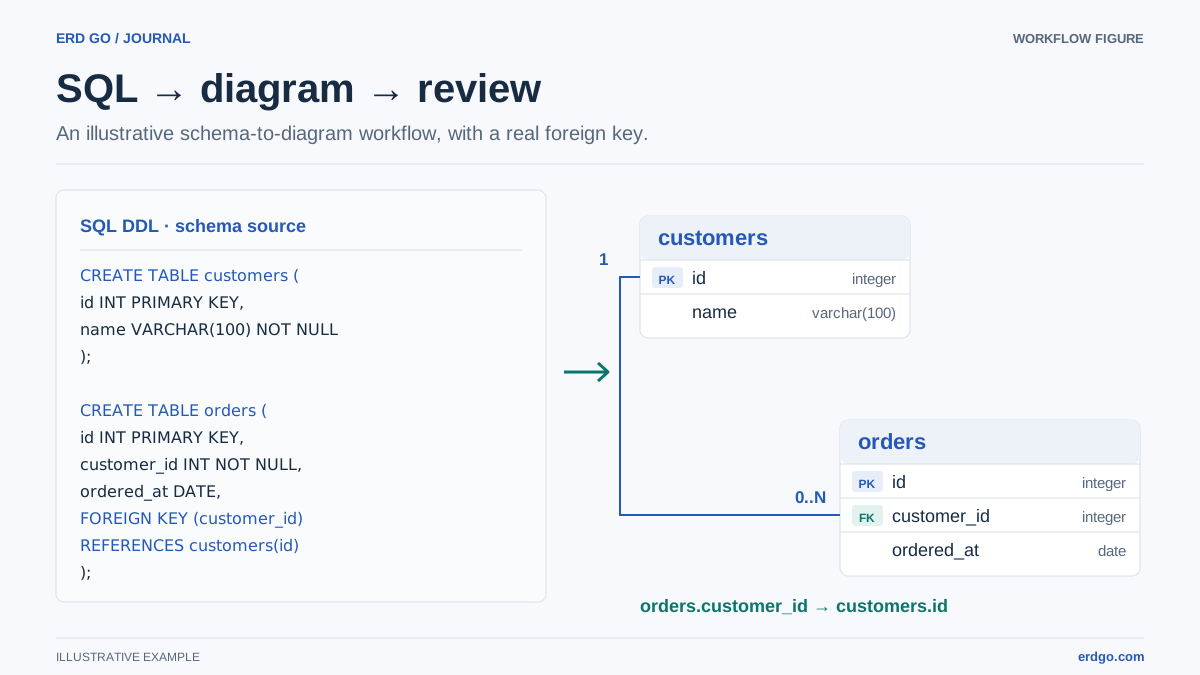
The fastest way to go from SQL to diagram is to use an automatic ERD generator. With the Erd Go editor, you simply paste your SQL and receive an interactive, editable diagram in seconds—no manual drawing required.
Manual vs Automatic ERD Generation
There are two broad approaches to creating an ERD from an existing schema, and understanding the trade-offs helps you pick the right tool for the job.
Manual Diagramming
- You draw each table box by hand in a tool like Lucidchart, draw.io, or even a whiteboard.
- Complete creative control over layout and visual style.
- Downsides: extremely time-consuming for large schemas, easy to introduce discrepancies between the diagram and the actual database, and you must update the drawing every time the schema changes.
Automatic Generation
- A tool parses your SQL DDL (Data Definition Language) and programmatically builds the diagram.
- Derives the diagram from supported SQL definitions. Review parser warnings and missing references; automated parsing does not prove that the SQL or business rules are correct.
- Re-generating after a migration takes seconds instead of a manual editing session.
- Downsides: auto-layout may not look perfect initially, so you sometimes need to drag tables into a cleaner arrangement.
For most teams, automatic generation with light manual tweaking is the ideal workflow. You get speed and accuracy.
Step-by-Step: Generate an ERD with Erd Go
Follow these steps to turn a supported SQL schema into a readable ERD. Large schemas and incomplete dumps may need cleanup before review.
Step 1 — Open the Editor
Navigate to the Erd Go editor. Choose an empty SQL file or a starter example. The workspace provides a SQL panel and a diagram canvas; on smaller screens, switch views as needed.
Step 2 — Paste Your SQL
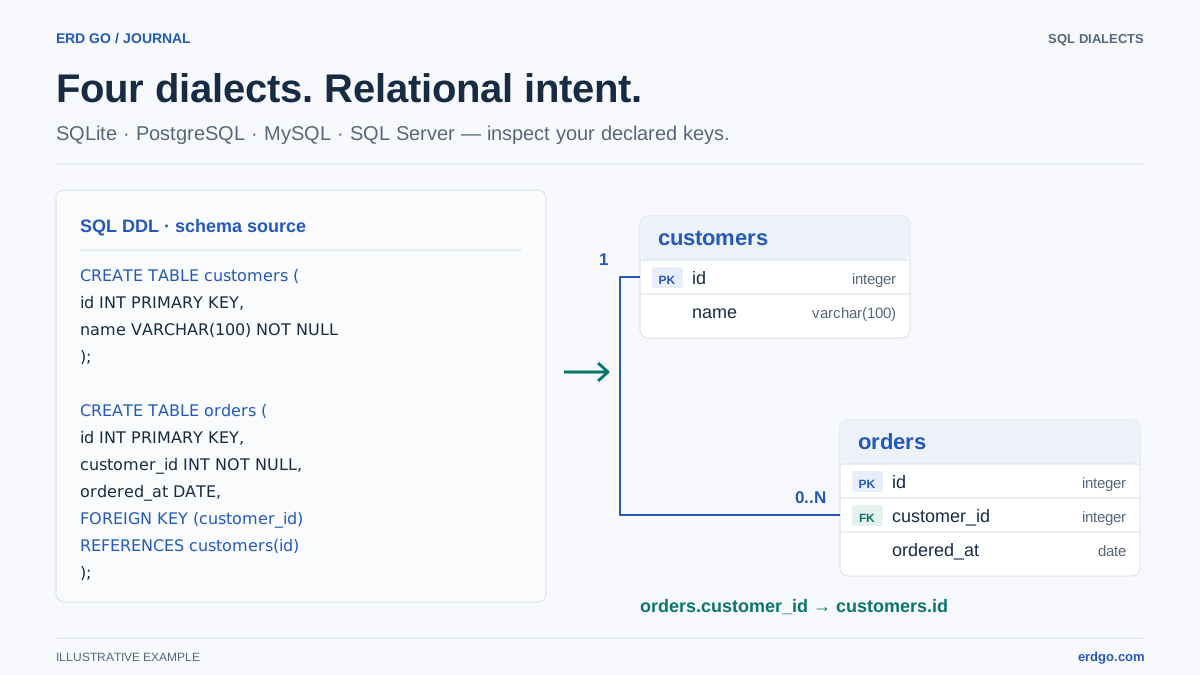
Copy your CREATE TABLE statements (including foreign keys) and paste them into the SQL panel. Erd Go supports standard SQL syntax from PostgreSQL, MySQL, SQLite, and SQL Server.
Step 3 — Watch the Diagram Appear
The editor parses your DDL in real time and renders table boxes with columns, data types, primary keys, and foreign-key arrows. Relationships are automatically detected from FOREIGN KEY and REFERENCES clauses.
Step 4 — Refine the Layout
Drag tables to reposition them. Group related entities together for clarity. The editor keeps positions for matching tables as you edit the current document. Renaming or replacing tables can require another layout review; save the document to preserve it for a later session.
Step 5 — Export or Share
Export a PNG, SVG, or PDF for documentation and presentations. To share a read-only public link, sign in and save the document first; review sensitive schema details before making it public.
Supported SQL Features
Erd Go’s parser handles a wide range of DDL constructs but coverage is not identical to a database server. Consult the supported syntax and limitations and review diagnostics when importing a dump.
| SQL Feature | Example | How It Appears in ERD |
|---|---|---|
CREATE TABLE | CREATE TABLE users (...); | Rendered as a table box with column list |
PRIMARY KEY | id SERIAL PRIMARY KEY | Column marked with a key icon |
FOREIGN KEY / REFERENCES | REFERENCES users (id) | Arrow drawn between the two tables |
ENUM types | CREATE TYPE status AS ENUM (...); | Shown as a custom type in the column definition |
ALTER TABLE | ALTER TABLE orders ADD COLUMN ...; | Column added to the existing table box |
UNIQUE / NOT NULL | email VARCHAR(255) UNIQUE NOT NULL | Constraint badges displayed on the column |
DEFAULT values | created_at TIMESTAMP DEFAULT NOW() | Default retained in schema metadata and SQL; inspect the column details |
A Complete Example: E-Commerce Schema
Copy the SQL below and paste it directly into the Erd Go editor to see a fully rendered e-commerce ERD.
-- Enum for order status
CREATE TYPE order_status AS ENUM (
    'pending', 'processing', 'shipped', 'delivered', 'cancelled'
);

CREATE TABLE customers (
    id          SERIAL PRIMARY KEY,
    full_name   VARCHAR(120) NOT NULL,
    email       VARCHAR(255) UNIQUE NOT NULL,
    phone       VARCHAR(20),
    created_at  TIMESTAMP DEFAULT CURRENT_TIMESTAMP
);

CREATE TABLE categories (
    id          SERIAL PRIMARY KEY,
    name        VARCHAR(100) NOT NULL,
    slug        VARCHAR(100) UNIQUE NOT NULL,
    parent_id   INT REFERENCES categories (id)
);

CREATE TABLE products (
    id          SERIAL PRIMARY KEY,
    name        VARCHAR(200) NOT NULL,
    description TEXT,
    price       NUMERIC(10, 2) NOT NULL CHECK (price > 0),
    category_id INT REFERENCES categories (id),
    sku         VARCHAR(50) UNIQUE,
    created_at  TIMESTAMP DEFAULT CURRENT_TIMESTAMP
);

CREATE TABLE orders (
    id          SERIAL PRIMARY KEY,
    customer_id INT NOT NULL REFERENCES customers (id),
    status      order_status DEFAULT 'pending',
    total       NUMERIC(12, 2) NOT NULL DEFAULT 0,
    ordered_at  TIMESTAMP DEFAULT CURRENT_TIMESTAMP
);

CREATE TABLE order_items (
    order_id    INT NOT NULL REFERENCES orders (id) ON DELETE CASCADE,
    product_id  INT NOT NULL REFERENCES products (id),
    quantity    SMALLINT NOT NULL DEFAULT 1 CHECK (quantity > 0),
    unit_price  NUMERIC(10, 2) NOT NULL,
    PRIMARY KEY (order_id, product_id)
);

ALTER TABLE products ADD COLUMN stock INT NOT NULL DEFAULT 0;
This schema demonstrates several patterns at once: one-to-many (customers → orders), many-to-many (orders ↔ products via order_items), a self-referencing foreign key (categories.parent_id), an ENUM type, CHECK constraints, and an ALTER TABLE statement. The Erd Go editor handles all of them.
Tips for Clean, Readable ERDs
Even with automatic generation, a few best practices make your diagrams significantly more useful:
- Use consistent naming conventions. Stick to
snake_casefor tables and columns. Name junction tables after the two entities they link (e.g.,order_items,student_courses). - Group related tables visually. Place the
users,roles, andpermissionstables near each other, away from unrelated product tables. - Minimize crossing lines. Rearrange tables so that foreign-key arrows flow in the same general direction (top-to-bottom or left-to-right).
- Highlight key entities. Place your most important tables (e.g.,
users,orders) in the center of the diagram. - Regenerate after migrations. Treat your ERD as a living document. After every schema change, re-paste the updated SQL into the Erd Go editor to keep the diagram in sync.