Start with a question the model should answer
A class diagram describes the structure of a system: the kinds of objects it contains, the information they hold, and the behavior they expose. Use it to discuss responsibilities and contracts before implementation, or to explain an existing design. It describes types; an individual order such as order 471 would be an instance of the Order class.
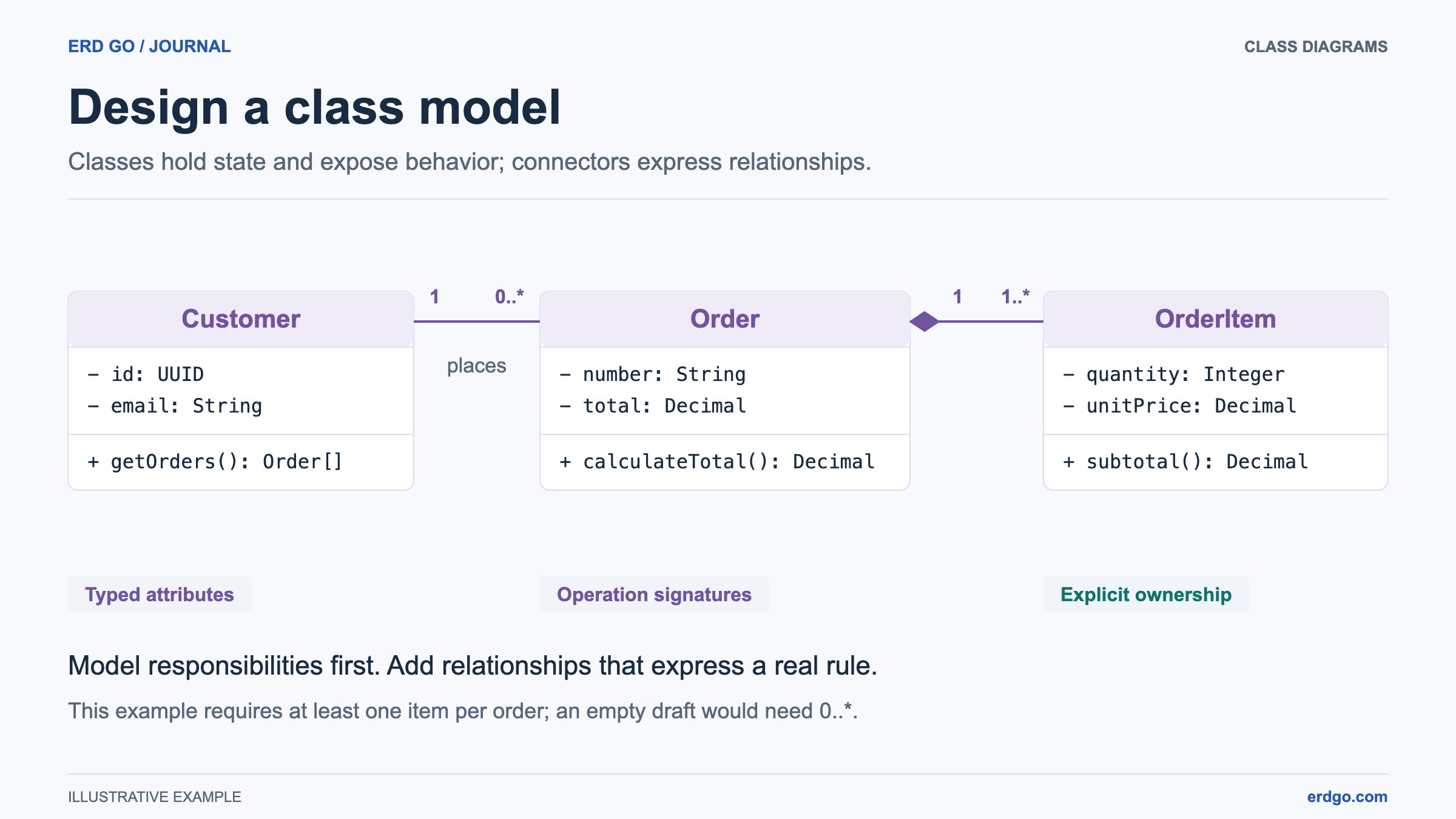
For this guide, ask how a shop represents orders and calculates their totals. Start with Customer, Order, and OrderItem. Keep shipping, discounts, and inventory outside the first sketch. A small model with explicit decisions is easier to review than a large diagram that mixes several unrelated concerns.
Create classes in the visual workspace
Open Class Diagram and choose Order system template to explore an editable example, or Blank diagram to build the model yourself. Click or drag a classifier from the Library onto the canvas. Name the first three classes Customer, Order, and OrderItem, using singular names that match the vocabulary of your application.
The Library offers Class, Abstract class, Interface, and Enumeration. Choose the kind because of its meaning, not its color. An interface states a contract; an enumeration supplies named values. Custom classifier adds a stereotype label, but does not introduce a new compiler-enforced type system or additional UML semantics.
Select a class to open its Inspector. On a small screen, Edit details takes you to the properties panel and Back to diagram returns you to the canvas. Add a class only when you can explain its responsibility in one sentence.
Separate attributes from operations
Attributes describe state. For Order, use number: String and total: Decimal. Operations describe behavior that the class exposes, such as adding a line item or calculating a total. The diagram records signatures; it does not execute those operations or generate their implementation.
In the Inspector, Fields mode helps you enter visibility, names, types, parameters, and return values. Text mode is useful when you already know the notation. The example below has two private attributes and two public operations. Keep the attribute lines in Attributes and the operation lines in Operations.
Order attributes
- number: String
- total: Decimal
Order operations
+ addItem(item: OrderItem): void
+ calculateTotal(): Decimal- + means public, - private, # protected, and ~ package visibility.
- Parentheses distinguish an operation from an attribute; the return type follows the closing parenthesis.
- Use Enumeration for values such as OPEN, PAID, and CANCELLED; its attribute compartment holds literals.
- Unrecognized custom notation is preserved. The guided parser and Checks are not a language compiler.
Connect responsibilities and read both ends
Connect Customer to Order with an association labeled places. If a customer may have any number of orders and each order has exactly one customer, put 1 at the Customer end and 0..* at the Order end. Read the number next to a class as the count of instances of that class for one instance at the opposite end.
Connect Order to OrderItem with composition only if a line item belongs to one order and has no independent place in this model. The filled diamond belongs next to Order, the whole. Use 1 at Order and choose the OrderItem bound deliberately: 0..* permits an empty draft, while 1..* requires at least one item. That choice is a business rule, not a styling preference.
If payment behavior matters, add a Payable interface and a realization from the implementing class to that interface. The dashed line ends in a hollow triangle at the contract. Avoid inheritance merely because two classes happen to have fields with the same names.
Review the model before polishing its layout
Open Checks to review member notation, names, multiplicity bounds, and structural relationships. Select a finding to reveal its class or connector. The checks help you inspect a model; they cannot prove that a total calculation, ownership rule, or implementation is correct.
When changing a class name, Rename with references previews recognized attribute and operation type references. Review the proposed changes and select which references should follow the new name. This helps keep a type name consistent across the model without replacing unrelated text.
Walk through a concrete scenario: a customer creates a draft order, adds two items, and requests the total. Ask which class owns each piece of state and which operation is responsible for each action. Put unresolved rules in a note instead of hiding them inside a vague connector label.
Make a readable view for your audience
Arrange organizes the classes using the graph and their displayed sizes. Layout offers selected alignment, equal gaps, position locks, and selection arrangement. Use a lock for an intentional position; leave other classes free to move. Arrangement changes positions and connection sides, not the meaning of your relationships.
Open View to choose Full details, Attributes only, or Names only. Curved and Elbow in the same panel change the document-wide connection style. Automatic endpoints follow moved classes until you pin an individual head to a side. Find searches names and members; member results reveal the relevant details.
Use a package for a visual group, then collapse it when a review needs an overview. Packages in this workspace are visual groups rather than namespaces. A note can attach to a class or relationship so its explanatory tether follows the target. Use restrained color to distinguish responsibilities, and check readability after fitting the canvas.
Choose the right file for the next step
Sign in and Save for an editable cloud file. Save the latest changes before sharing a public read-only link. A new diagram stays in memory until you save it or download JSON; an image is not a substitute for an editable backup.
Download JSON preserves the complete document. Image export offers PNG, JPEG, WebP, SVG, and PDF for reports or presentations, with visible detail choices reflected in the image. File → Export PlantUML previews, copies, or downloads local text for a PlantUML workflow. PlantUML lays out that text independently; it is not a round-trip format for the editor camera and positions.
Finish by checking the model at the scale your readers will see. State whether the drawing represents a proposal or implemented behavior, and keep its purpose and unresolved rules close to the diagram. For exact controls and supported syntax, use the Class Diagram guide linked below.
References and further reading
Try the model in Class Diagram
Start with a blank model or explore the order-system template.